![4 Color_Transparent_Horizontal_Canal Logo (1).png]](https://help.canalinsurance.com/hs-fs/hubfs/4%20Color_Transparent_Horizontal_Canal%20Logo%20(1).png?width=200&height=80&name=4%20Color_Transparent_Horizontal_Canal%20Logo%20(1).png)
Step 1: Block a gateway for the new unit
-
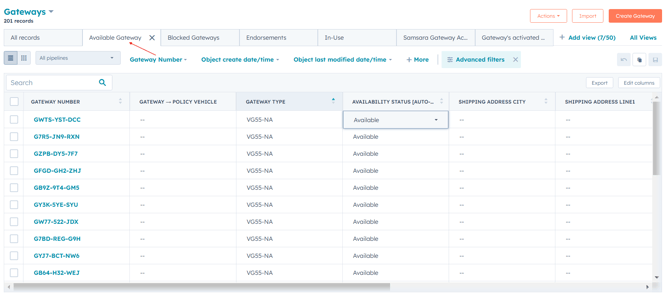
Navigate to Gateways.
-
Click the Available Gateways tab.
-
Select a gateway where Availability Status = Available.
-
Click the Availability Status field and choose Blocked for Endorsement.
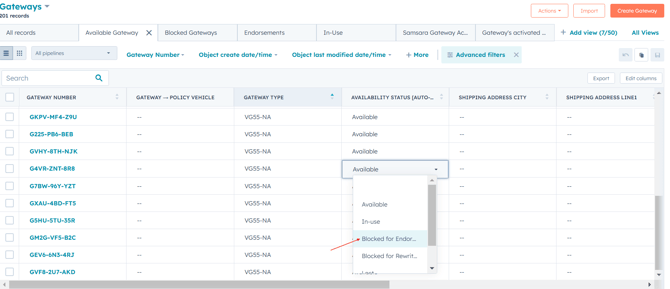
A panel will open on the right side.
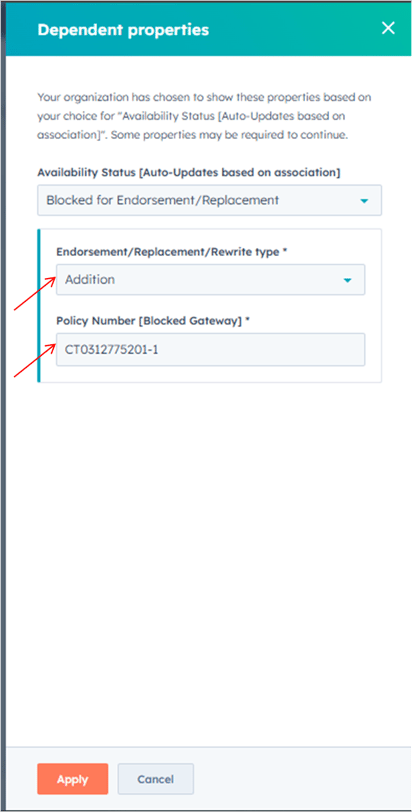
In the panel:
-
-
Set Type = Addition
-
Enter the Policy Number
-
Click Apply
-
Click Save
-
Result:
The gateway is reserved for the additional unit and linked to the policy.
Repeat this step for each additional unit requested.
Step 2: Confirm the policy location and update pipeline (if required)
-
Open the policy:
-
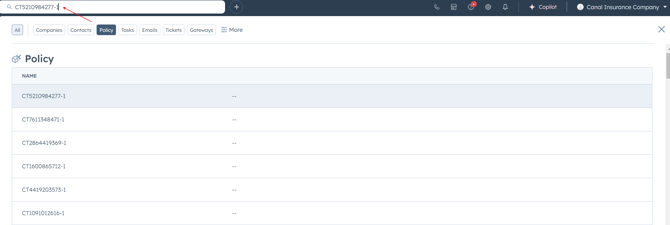
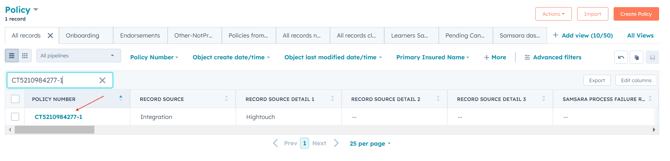
Option A: Use Global Search
-
Option B: Navigate to the Policy object and search by policy number.
-
-
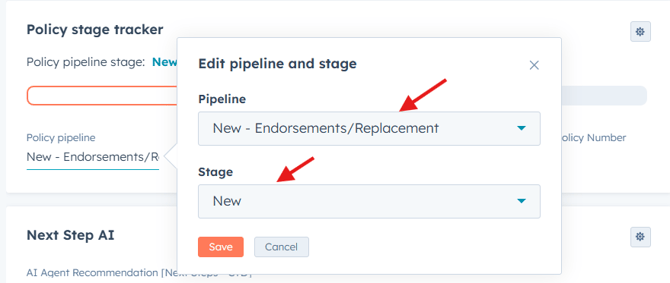
Check the Policy Pipeline:
-
If the policy is still in Rewrites, move it to:
-
Pipeline: New – Endorsement/Replacement
-
Stage: New
-
If already in New – Endorsement/Replacement, no change is needed.
-
Step 3: Verify prerequisites
-
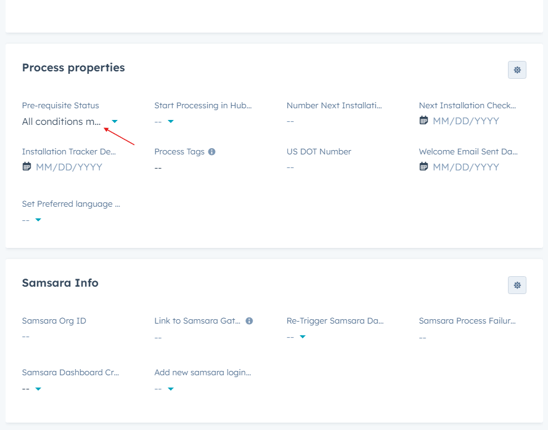
In the Overview, confirm:
-
Pre-requisites Status = All conditions met
-
If not:
-
-
Complete any missing requirements.
-
Go to the Policy Actions tab.
-
Set Retest Pre-requisite = Yes
-
Return to Overview and wait for the status to update.
-
Note:
This step triggers the endorsement process in the system.
Step 4: Update the gateway in Policy Center
-
Open the policy in Policy Center.
-
Add the new unit and assign the blocked gateway (from Step 1).
-
Issue or update the policy as required.
Important:
The process continues once the gateway number syncs to the TelematicsDeviceNr field on the HubSpot Policy Vehicle. This sync may take some time.
Result:
Policy Center reflects the correct Addition gateway selection.
Step 5: Confirm automation progress
Once the gateway sync completes, the system will automatically:
-
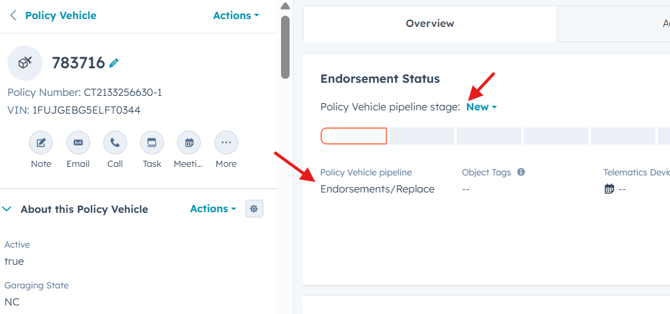
Move the Policy Vehicle to the Endorsement pipeline.
-
Associate the blocked gateway
-
Move the Policy Vehicle to Gateway Assigned
-
Send a Welcome Email to the Primary Insured
To Verify The Email:
-
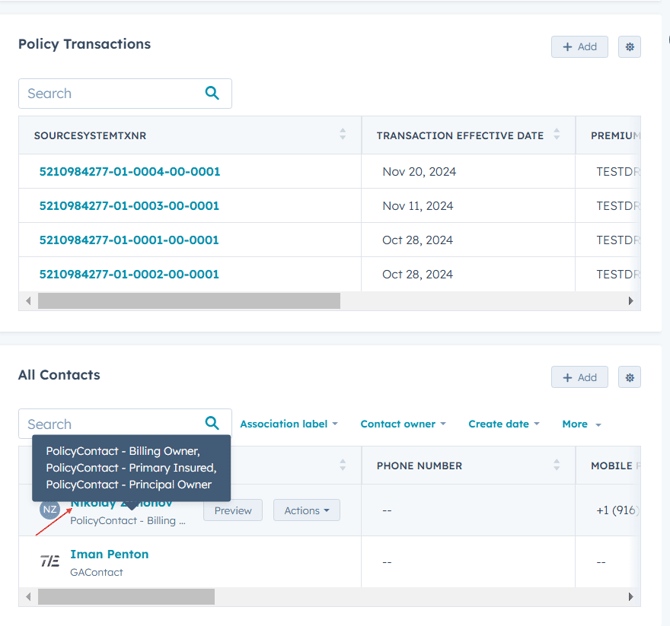
Scroll down to the All Contacts section under the Overview tab and navigate to the Primary Insured of the policy.
-
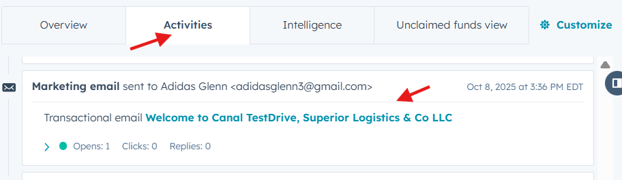
Navigate to the Activities section and scroll down. You will see a welcome email for Endorsements that has been sent to the primary insured's email.
Step 6: Post-email workflow (automated)
-
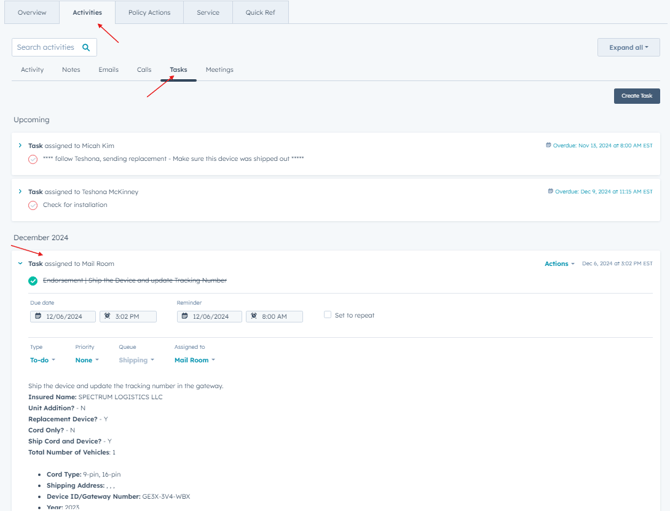
After the user completes the webflow, the Policy Vehicle stage will be updated to "Webflow Complete," and a task will be generated to ship the device, including the device and type details. This can be viewed under the Tasks section of the Activities tab.
- Once the device is shipped, the UPS status will be synced to the "Tracking Status" property, and the Policy Vehicle stage will be updated to "Device Shipped."
- Once the device is delivered, the UPS status will be synced to the "Tracking Status" property, and the Policy Vehicle stage will be updated to "Device Delivered."
- Policy Vehicles will be enrolled in the installation tracker until the user installs the device.

-
Once the device is installed, the Telematics Device Activation Date will be synced from the database to HubSpot and displayed in the "Telematics Device Activation Date" property in the Policy Vehicle. The Policy Vehicle stage will then be updated to "Endorsement Complete."

Expected Outcome
For unit additions during Rewrites:
-
The policy is moved into the endorsement process
-
The new gateway is reserved and assigned
-
Client communication and fulfillment occur automatically
-
The process completes once the device is installed and activated